Back to NetBlade guide

Understand your network, and do something with it

NetBlade is built for people who administer networks, but a home network and a small office network follow the same rules. This guide explains the few words that matter, what SNMP is and why it changes everything, how to let Windows and Linux machines be read, and what to actually do for a faster and safer network. Nothing is assumed.

01glossary

The words that matter, without the jargon

Eight terms are enough to read any NetBlade screen and understand what is happening on your network.

IP address
The number a device is found by inside the network, for example 192.168.1.14. At home it is private and means nothing outside: the one the world sees is a single address, the router’s.
Subnet and /24
The fence inside which devices talk to each other directly. 192.168.1.0/24 means "every address from 192.168.1.1 to 192.168.1.254" — the ones NetBlade tries, one by one, when it scans.
Gateway
The device that carries traffic out of the subnet: at home, the router. If the gateway does not answer, the internet is not slow — the first hop is broken.
MAC and vendor (OUI)
The physical address of the network card, written at the factory. Its first three bytes say who built it: that is how an anonymous IP becomes "HP printer" or "Hikvision camera".
DHCP and lease
The router hands out addresses on loan, for a limited time. That is why a device can change IP overnight, and why things are better identified by MAC than by address.
Port and service
One device can offer several services on the same address: the port says which one you are knocking at. 22 is SSH, 80 and 443 the web, 445 Windows file sharing, 9100 direct printing. An "open" port is a service listening, and every listening service is something that can be attacked.
ARP and neighbours
The table that ties an IP address to a hardware address inside the same network. Android lets apps read it, iOS does not: that is the technical reason behind the main difference between the two versions.
Latency, jitter and loss
How long an answer takes to come back, how much that time varies, and how many packets never return. A stuttering video call is almost never "slow internet": it is usually jitter or loss on Wi-Fi.

02protocol

SNMP, explained to someone who does not do this for a living

SNMP is the language network equipment answers questions about itself in. It is old, it is everywhere, and almost nobody at home knows they already have it.

The name stands for Simple Network Management Protocol, and it works exactly as simply: every piece of information a device knows about itself has a numeric address, you ask for that address, and the device answers with the value. Nothing to install, no account — routers, managed switches, printers, NAS boxes, UPS units, cameras and most servers already speak it.

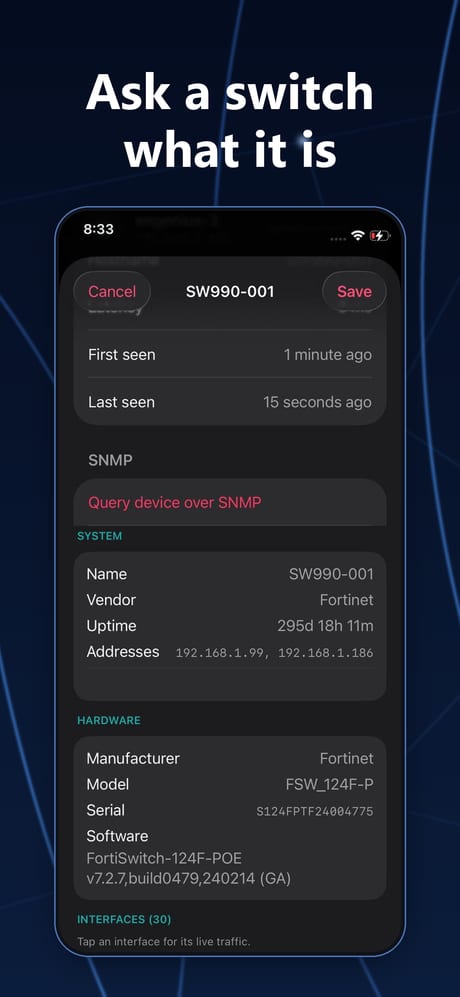
The practical difference is this: without SNMP a scan can only knock on ports and infer. With SNMP the device tells you itself — model, firmware version, how long it has been up, how much toner is left, how much disk is free, which hardware addresses it sees on which port.

SNMP

What you actually get

  • From the router: the table of hardware addresses, which means the name and vendor of everything connected — on iPhone it is the only way to have them.
  • From a managed switch: which device is plugged into which port, and how much traffic goes through it. That is the difference between a list of addresses and a map of the network.
  • From a printer: model, page counter and toner level, without getting up.
  • From a NAS or a server: free space, CPU load, interface status.
  • From a UPS: battery charge and remaining runtime.

The versions, in two lines

  • v1 and v2c: access is protected by a single word, the community, which travels in the clear. It is almost always public, read-only. Fine inside the house, never exposed to the internet.
  • v3: a user, an authentication password and encrypted traffic. If the device supports it, that is the one to use — NetBlade speaks it, with MD5 or SHA for authentication and DES or AES for privacy.

How to switch it on, device by device

  1. Home router: administration page, advanced or management section, SNMP. Many retail models have it; some carrier-supplied routers do not, and then there is nothing to be done.
  2. Synology NAS: Control Panel › Terminal & SNMP › Enable SNMP service. On QNAP: Control Panel › Network & File Services › SNMP.
  3. Printers: the printer’s web page, network section, SNMP. Often on out of the box.
  4. Managed switches: in the configuration, SNMP; set a read-only community and prefer v3 where it exists.
  5. Windows and Linux: on Windows it is an optional feature to add, on Linux the snmpd package. For computers, though, the WinRM or SSH inventory gives far more.

Three rules to stay safe

  1. Change the factory community where the device allows it, and keep it read-only: with write access, SNMP can change the configuration too.
  2. Never open port 161/UDP to the internet. SNMP inside the network is a tool; exposed outside it is a gift.
  3. The credentials you give NetBlade stay on the phone, encrypted, and are sent to nobody.

Why NetBlade leans on it

Because it is the only source that does not guess. A ping says something answered, an open port suggests a service: SNMP reports what the equipment knows about itself. On iPhone, where the system will not reveal the neighbours’ hardware addresses, it is also the only way to know who the devices in the list really are. Switch it on at the router and the app does the rest.

03windows

Getting a Windows PC ready to be read

NetBlade installs nothing on your machines: it connects with the credentials you give it, and reads. How much it can read depends on what the PC allows to be asked, and that is settled by two commands, run once on the PC, in PowerShell as administrator.

01

Touching nothing: what SMB gives

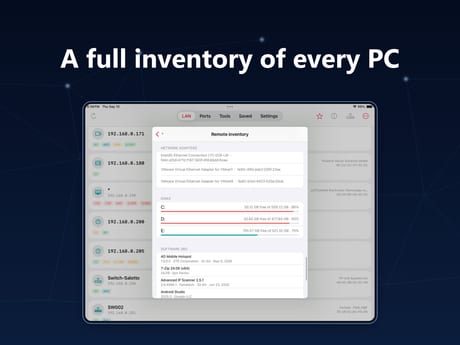
With an administrator account on that PC and file sharing on, Windows already tells a lot: machine name, edition and exact build, disks with free space, user profiles, shared folders, and installed programs read straight out of the binaries — which is the most accurate way to know which version is really running.

02

The command that opens everything else

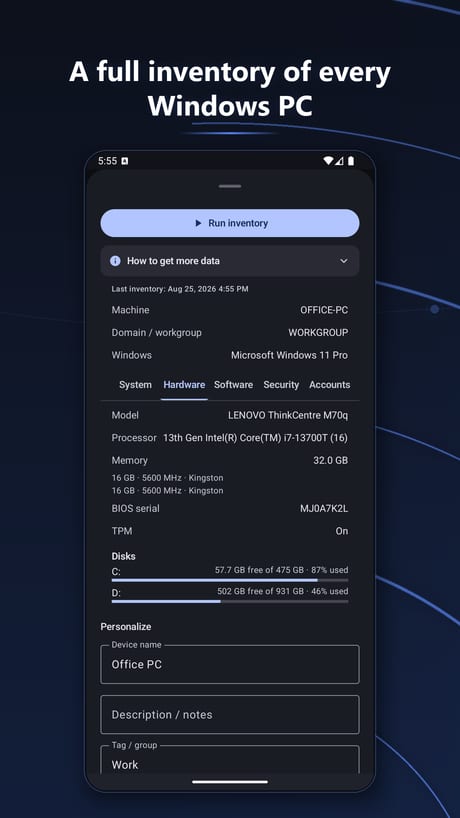
Hardware, processor, memory, BIOS serial, running services, installed updates, antivirus and whether it is really running, firewall profile by profile, BitLocker, TPM, local accounts and autostart all come from WinRM, the remote management service Windows ships switched off. This turns it on, and opens port 5985 on networks classified as private only:

winrm quickconfig
03

If disks and administrators are missing (workgroup PC)

On a PC that is not in a domain, Windows hands local accounts a filtered token when they arrive over the network: the password is right, and the administrative share is refused anyway. This registry key lifts that — or use the built-in Administrator account, which the filter does not apply to:

New-ItemProperty -Path ‘HKLM:\SOFTWARE\Microsoft\Windows\CurrentVersion\Policies\System’ -Name LocalAccountTokenFilterPolicy -PropertyType DWord -Value 1 -Force

If something does not answer

  • Nothing on port 445: the PC is off, on another network, or its firewall profile is Public. Set it to Private and allow file and printer sharing.
  • User name or password refused: in a domain use the domain and the user name, in a workgroup a local account with the domain field empty. An account with no password cannot log on over the network, by design.
  • Local groups unreadable: Windows restricts remote enumeration of accounts (RestrictRemoteSAM). The rest of the inventory is unaffected.
  • On iPhone and iPad the only route is WinRM, so the first command is the one that counts; installed programs are read from the registry instead of the binaries.

NetBlade changes nothing on your PCs: these commands are yours to run, when and if you want, and to undo whenever you like.

Windows inventory Windows inventory — Android
04linux

Getting a Linux machine ready

Nothing special is needed here: the SSH server is enough, and nearly every distribution already has it running. NetBlade connects, runs a handful of reads, and disconnects.

  1. Check that SSH is listening: on the machine, systemctl status ssh (or sshd). If it is not there, install it with the distribution’s package manager.
  2. Use an ordinary account, not root: the inventory reads need no privileges.
  3. Password or key, as you prefer: credentials stay on the phone, encrypted, and can be tied to the single machine or to the saved network.
  4. No sudo and no writes: NetBlade reads distribution, kernel, hostname, uptime, CPU, memory, disks, packages, services and interfaces. Every command guards itself — a tool that distribution does not have leaves an empty field instead of failing the reading.

If the connection is refused it is almost always the SSH server being off, or a port other than 22; if the host key fingerprint changes, NetBlade stops and tells you instead of carrying on.

05in practice

Seven moves to get the most out of your network

In order: from the first scan to a network that tells you itself when something changes.

01

Run the first scan and name things

Names, notes, icons and tags are saved. Whatever is left unnamed is exactly what is worth looking into: in a normal home the strangers are three or four, not twenty.

02

Save the network

From then on NetBlade can tell a new device from one that has always been there, and the timeline keeps count of what arrived and what disappeared.

03

Turn SNMP on at the router

This is the move that makes everything else sharper: vendors, hardware addresses and, if the switch is managed, the map of what is plugged into which port.

04

Look at the open ports of the things you leave on

NAS, cameras, printers, home automation. Every listening service you do not use is only exposed surface: switch it off from the device’s own panel.

05

Check the router

Factory password, forgotten port forwarding, UPnP opening ports by itself. The security of the router is the security of everything behind it.

06

Measure while the problem is happening

The latency monitor separates a slow connection from slow Wi-Fi in about a minute: if the ping to the router is already unsteady, it is not the provider’s fault.

07

On Android, pick the Wi-Fi channel and measure coverage

The analyser shows how crowded each frequency is, and the room-by-room survey says where a repeater is actually needed, instead of buying one on a hunch.

Download NetBlade and try it on your own network

Free, no account, and the scans stay on the device.

Google Play App Store Soon